learning
How do the word colors and dictionary lookup work?
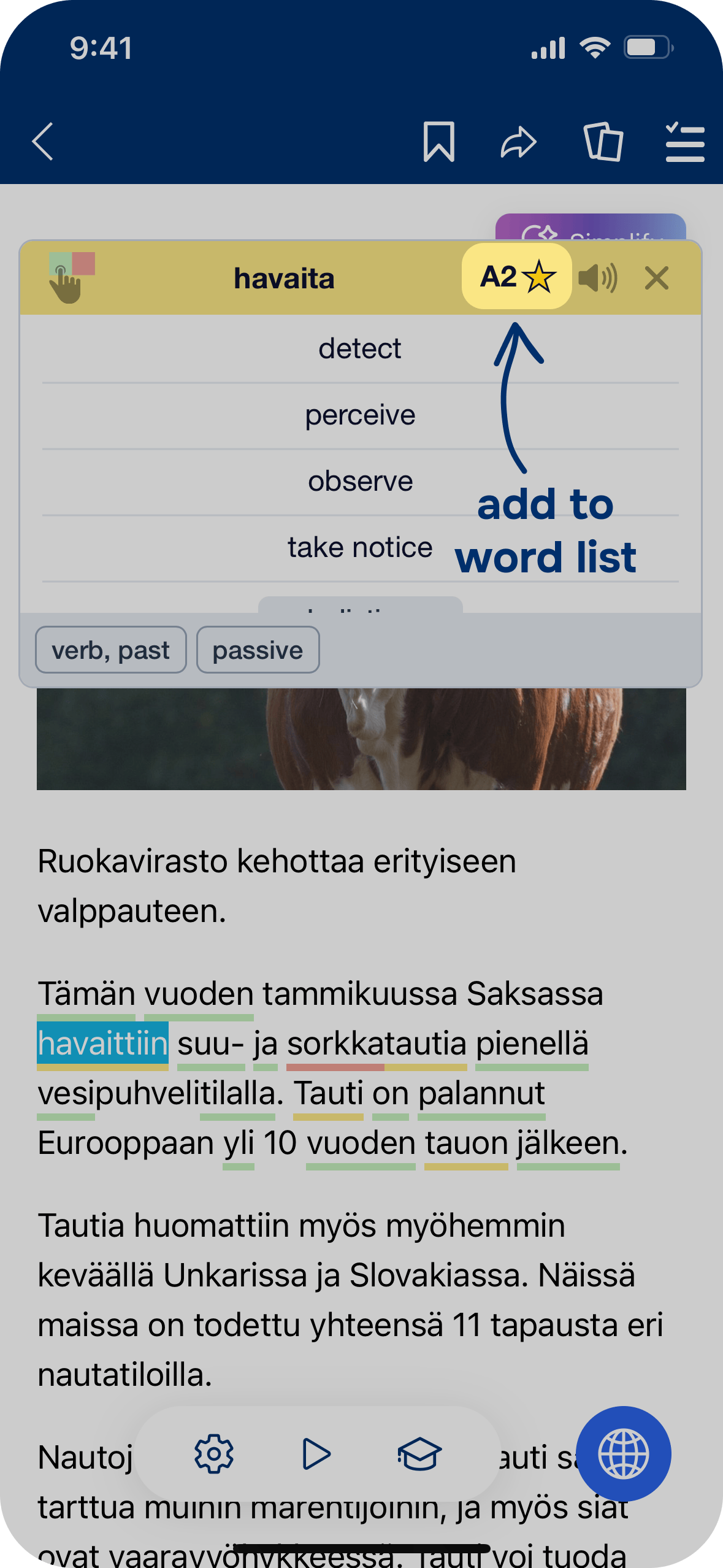
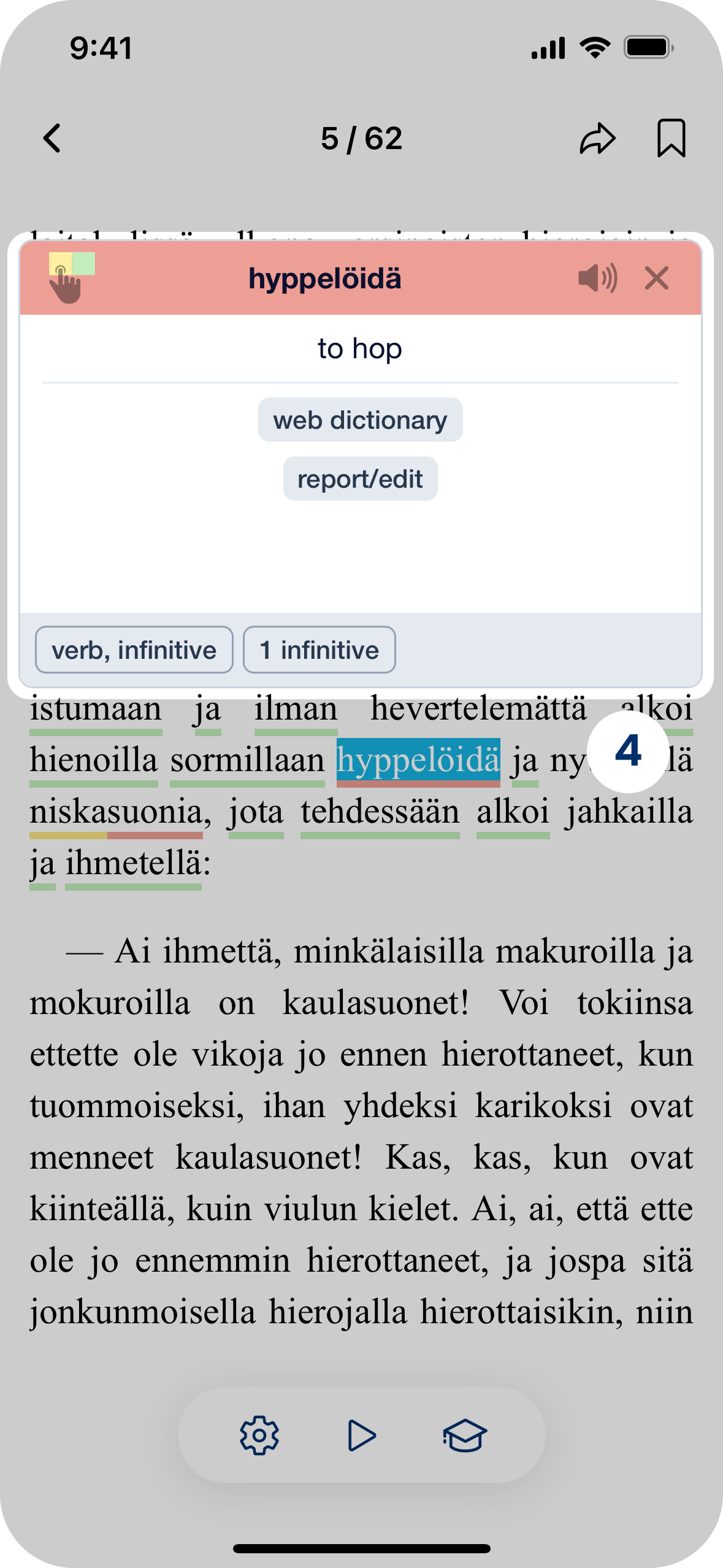
Each word is color-coded to show how it fits your level on the CEFR scale (A1–C2):
Green — you already know the word
Yellow — ready to learn now
Red — best to learn later, as your level improves.
Tap a word to see its translation. If a color feels wrong, tap the color bar to change it. This keeps your vocabulary list personal and accurate.
How to use the word list?
You can add a word to your word list by tapping the ⭐️ star icon in the dictionary lookup. Words you get wrong in exercises (launched from media) are added automatically.
You can practice with your word list in two main ways:
The word knowledge status (color) will be updated gradually with the number of exercises you performed. You’ll see small dots under each word to track progress:
-
No dots – weak word
-
One dot – medium word
-
Two dots – strong word
Once a word becomes strong and you review it again, it’s marked as known (green) and removed from your word list automatically.
How do I launch exercises from media?
To start practicing directly from any media (videos, podcasts, articles, etc.), look for the hat icon. Tap it to see a list of available exercises, then choose one to begin.
For articles and books, you’ll need to select a paragraph first – just tap on the text, then hit the Test button. The exercise will include all yellow words (the ones you're currently learning). If you answer them incorrectly, they’ll be added to your word list automatically.
What are the daily goals?
In the app, you can choose from three types of daily goals to help you stay on track with your language learning:
Learning time – Track how many minutes you dedicate to learning each day.
Words learned – Set a goal for the number of new words you want to actively learn.
Words read – Focus on reading and aim for a certain number of words encountered in content.
You can set the goal that best fits your learning style – choose between preconfigured values or customise it as you want. Switch it up anytime!
How do I change my daily goals?
Go to the Learning and Profile page and open the Activity tab. There, you’ll see an overview of your daily goals along with your streak stats. Tap Change daily goals to open the settings.
You can choose from the preset options or set your own custom goals—whatever works best for your learning style.
How does streak work?
Your streak shows how many days in a row you've stayed committed to learning. To keep it going, you need to complete at least one of these daily minimums:
-
Spend 5 minutes learning
-
Learn 5 words
-
Read 200 words
Keeping a streak can boost your motivation and make your learning journey more fun and rewarding.
How can I recover my streak?
If you miss a day, you still have one chance to recover your streak – on the very next day. To do this, just complete any one of the minimum daily goals twice:
-
Learn 10 words instead of 5
-
Read 400 words instead of 200
-
Spend 10 minutes learning instead of 5
That’s it! Do double the effort the next day, and your streak will be back on track.
Language settings
How to understand my CEFR level?
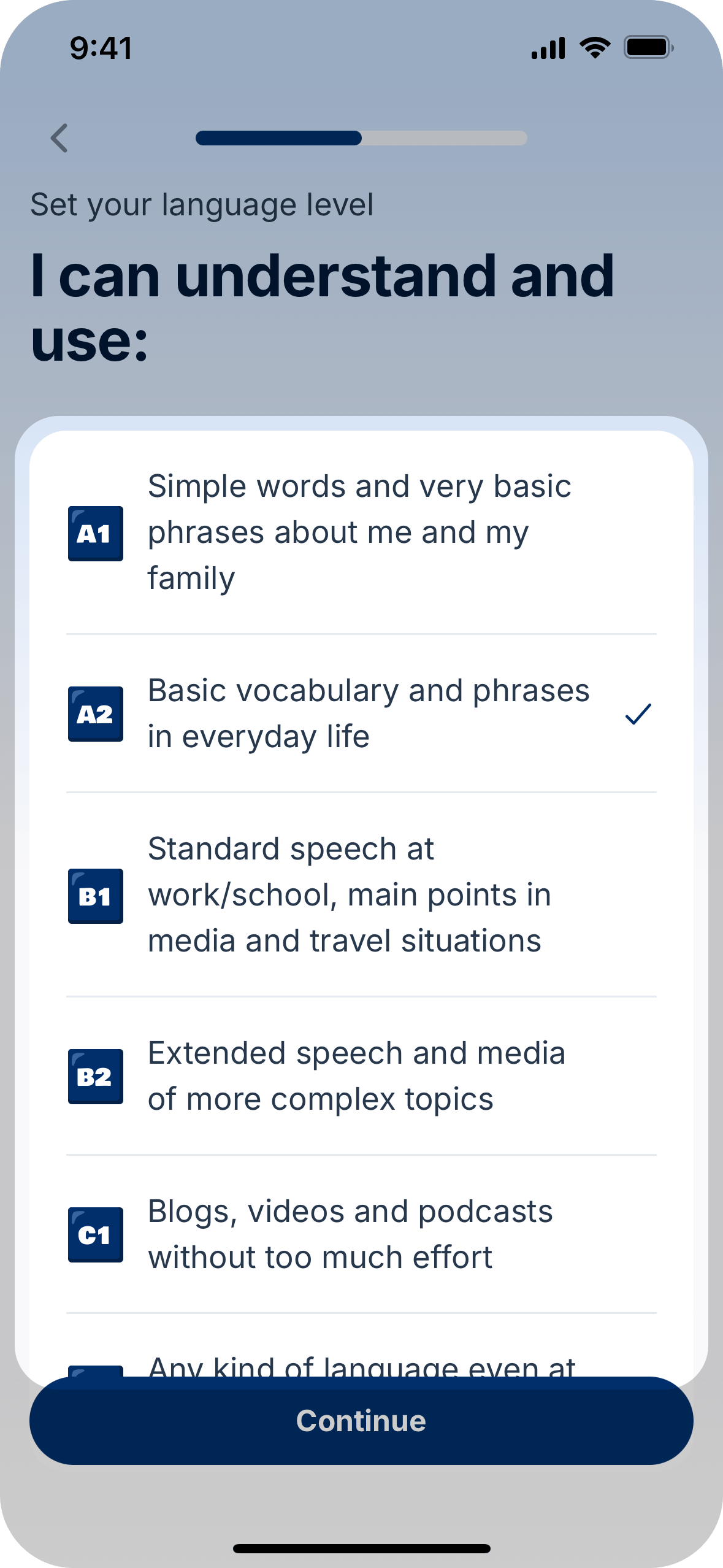
When choosing your CEFR level, read the descriptions carefully and select the one that best reflects your current skills. If you’re just beginning to learn the language, start with A1.
If you already know your CEFR level, simply select it. We use the standard CEFR scale (A1–C2), commonly used in language learning.
We've color-coded the words based on your language skill levels (CEFR scale A1-C2). Words you already know are highlighted in green, words you should learn now are highlighted in yellow, and red words you can learn later as your level improves. If the yellow words feel too easy or too hard, you can always adjust your level in the settings.
How do I change the language I speak?
To change the language you speak, go to the settings and look for the “Your Language” option. Tap on it, then select your preferred language from the list.
How do I change the language I learn?
To change the language you’re learning, go to settings, find the “Language to Learn” option and select your preferred language.
Please note: Your learning streak is linked to each language. Changing your learning language won’t erase your existing streak, but you’ll have separate streaks for each language you study.
Special Features
How do I use Google Translate or other web dictionaries with Lingvis Finland?
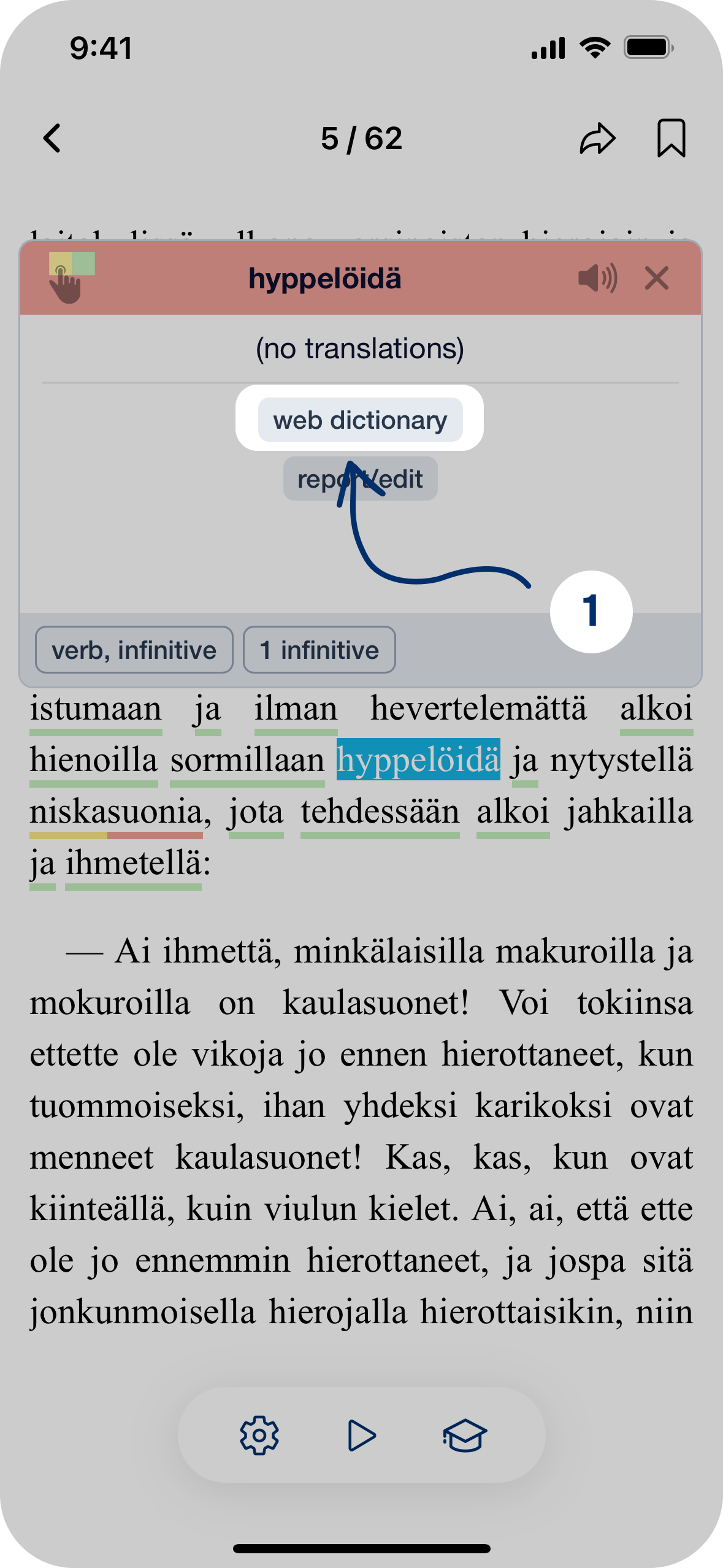
If you come across a word with a missing or incorrect translation, you can quickly find a better one:
-
Tap the “Web Dictionary” button when in the dictionary lookup.
-
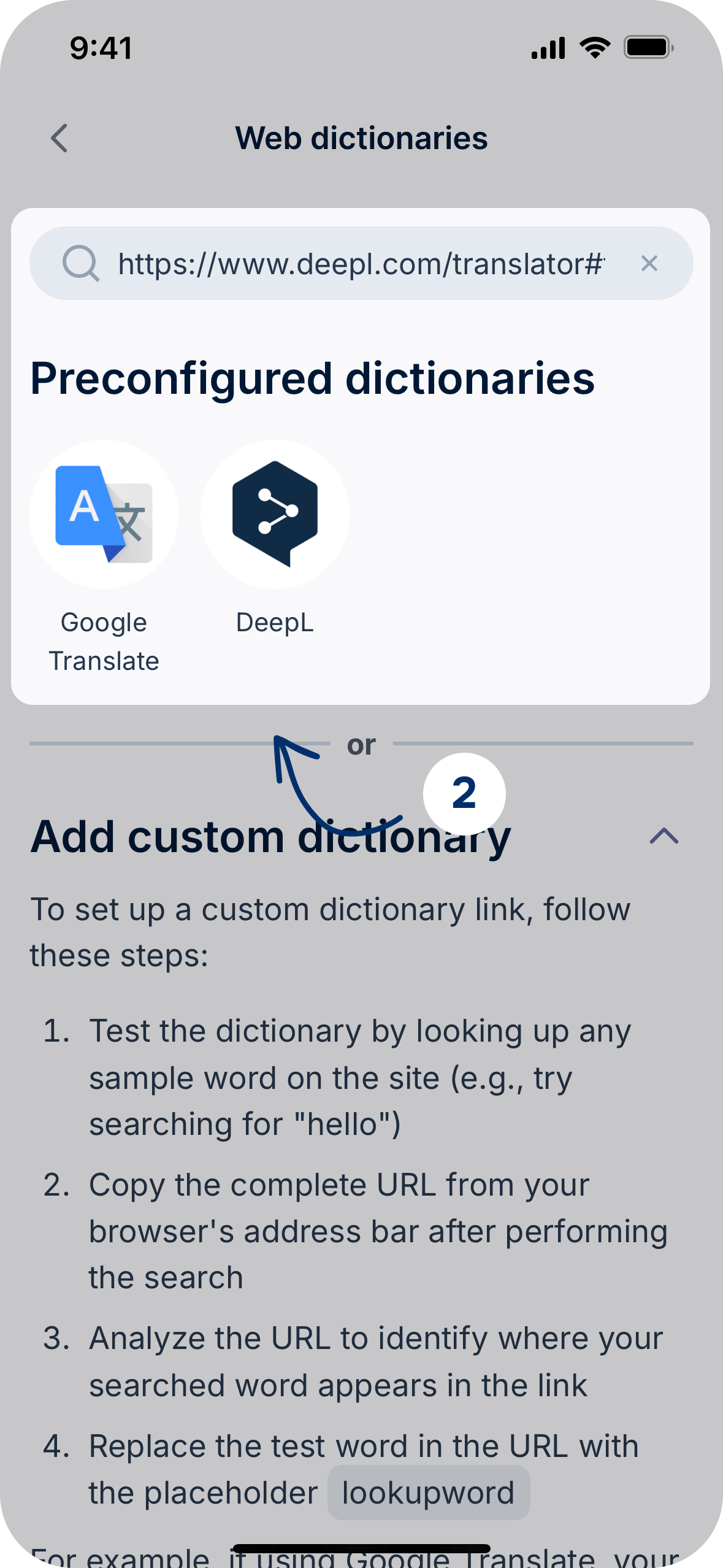
Choose a preconfigured dictionary from the list, or set up a custom dictionary by following the on-screen instructions.
-
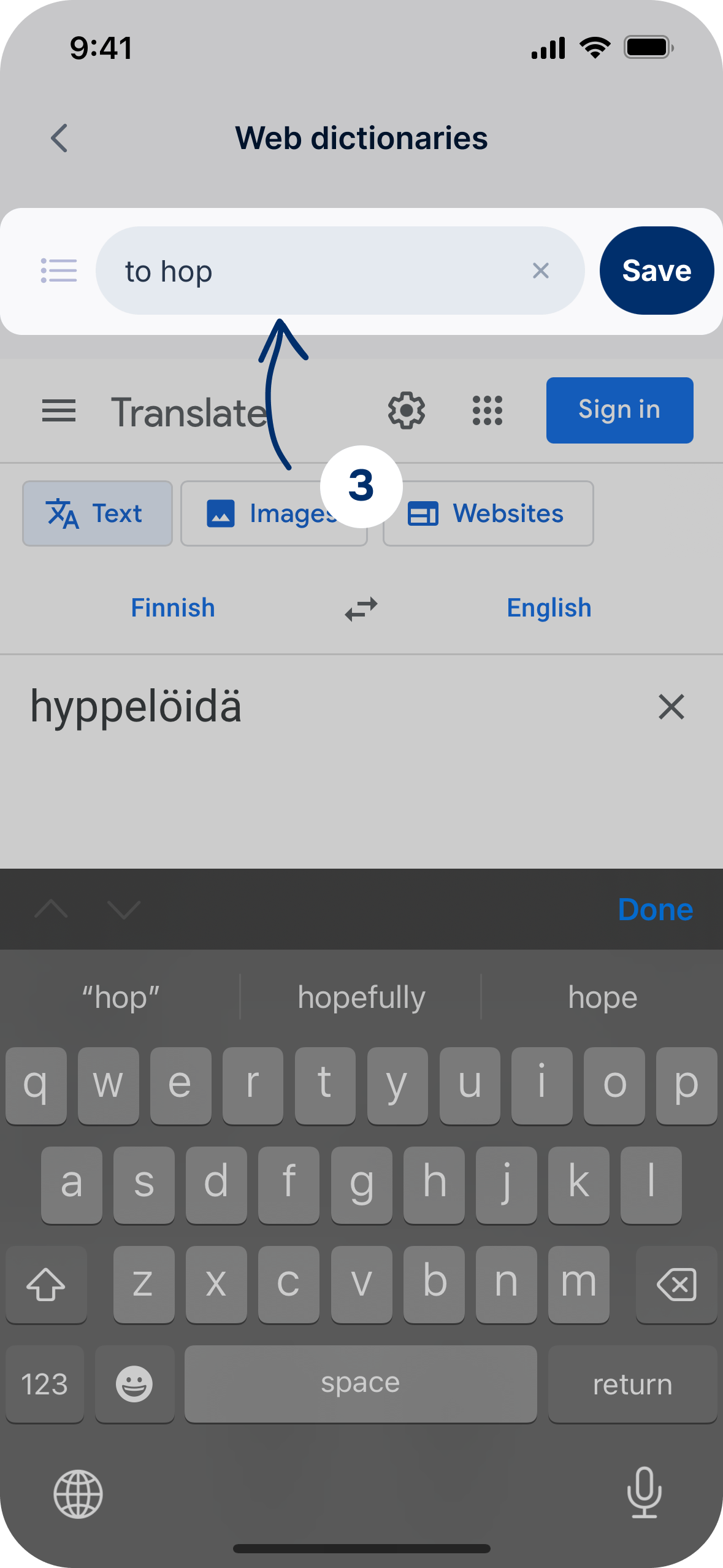
Once you find the correct translation, enter it using the input field at the top of the page.
-
Tap Save. The new translation will now appear in your word lookup.
How to use AI assistant?
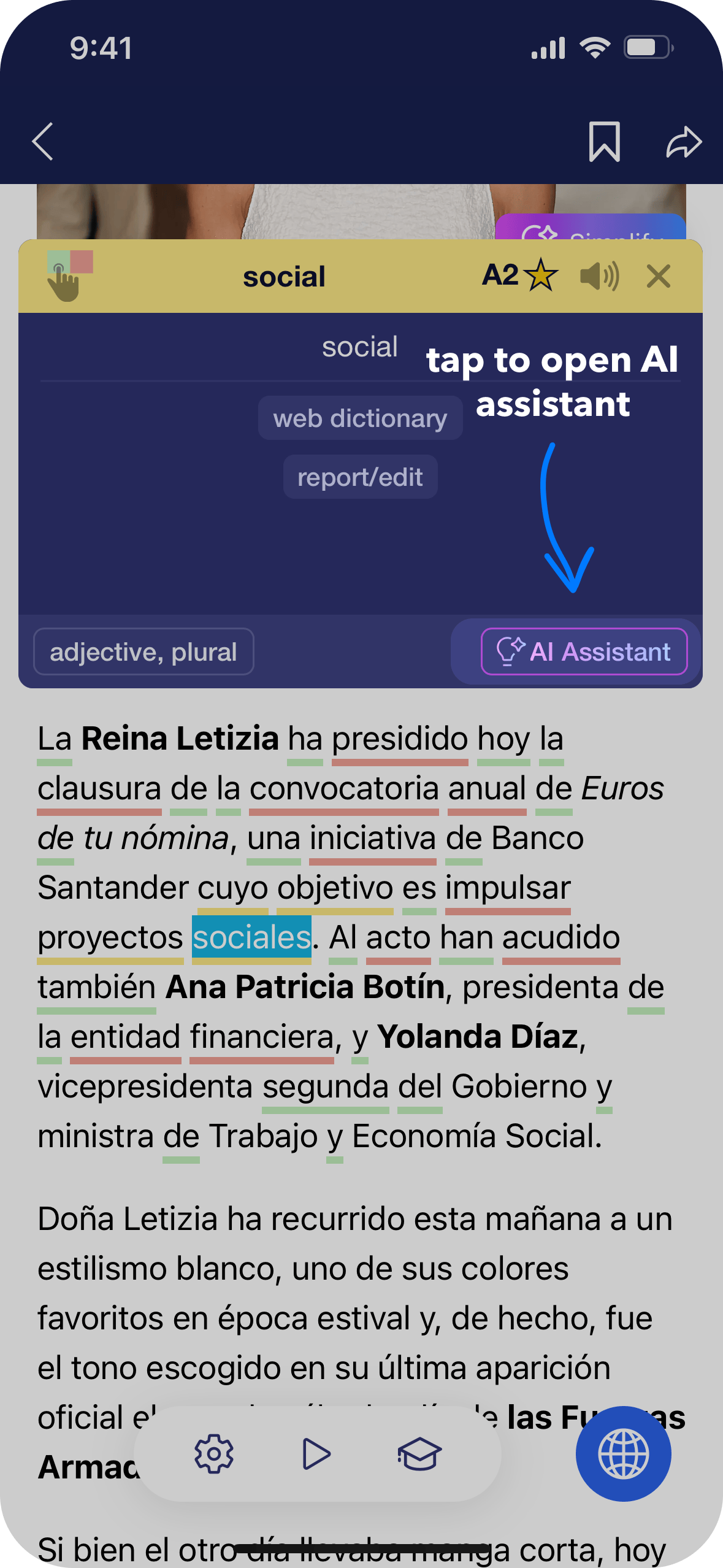
The AI Assistant gives you extra information about a word, including its grammar, usage, pronunciation, and translations in context.
To use the AI Assistant, look for the “AI Assistant” button in the dictionary lookup. Tap it to see more detailed information about the word.
Please note: Free users can access up to three lookups with the AI Assistant per day. If you’d like unlimited access, consider upgrading to Lingoal Premium.
How do I listen to articles or audiobooks?
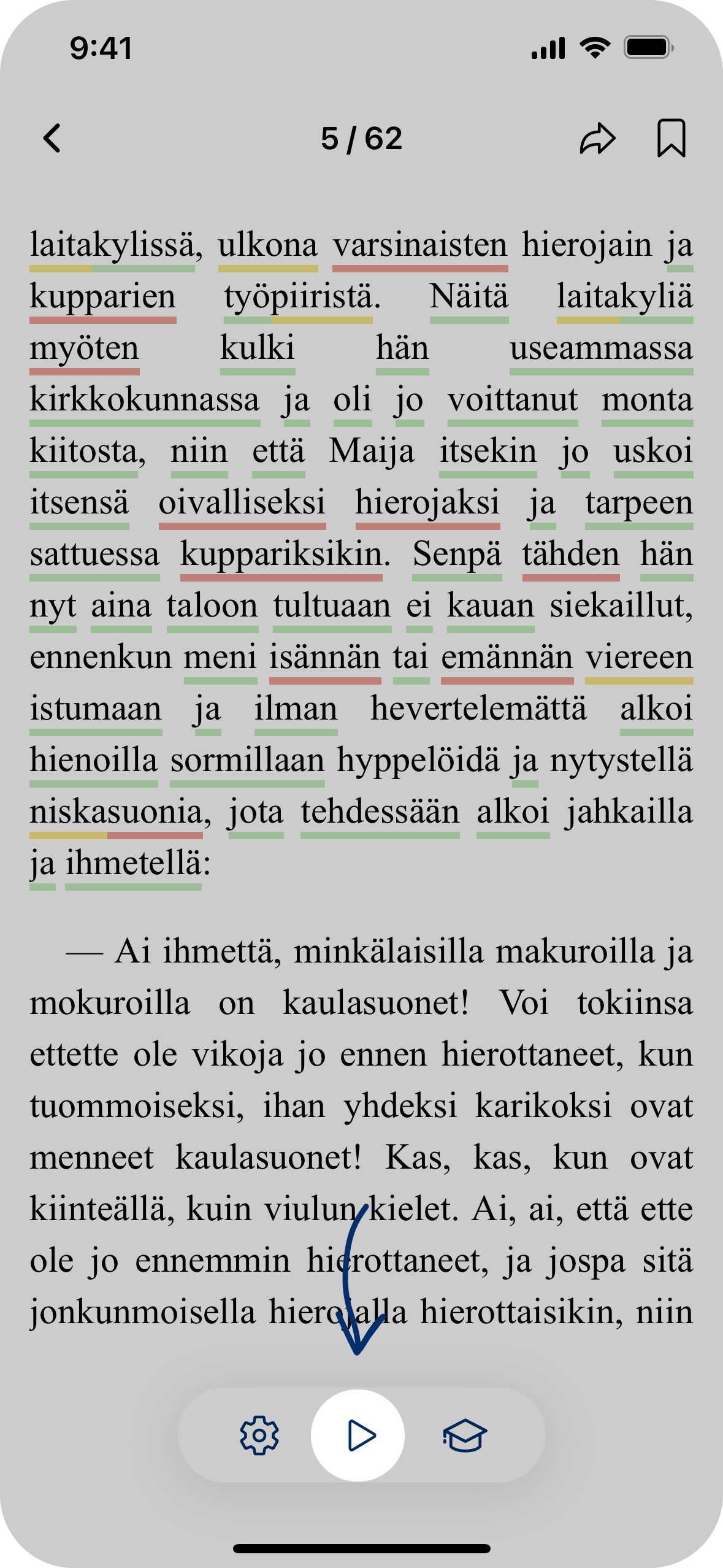
You can listen to books and articles directly in the app. Open an article in clean reading mode, or open a book, and look for the floating button at the bottom of the page. Select the paragraph where you want to start listening, then tap the play icon.
To adjust the playback speed or customize the reader’s appearance, just tap the settings icon.
Account & subscription
Why is this app completely free to use?
The Lingvis Finland app is fully funded by the Finnish Ministry of Education and Culture and the Ministry of Economic Affairs and Employment. Thanks to this support, you can learn Finnish or Swedish through authentic media content without any subscription fees.
Why should I register an account?
Registering an account keeps your learning progress and word lists safely stored, so you won’t lose them. It also lets you sync your progress across all your devices.
How do I delete my account?
To delete your account, go to Settings and select the option "Delete my account". You’ll need to enter your password to confirm.
Please note: Deleting your account will permanently erase all your data, and this action cannot be undone.